 iCaelum
Guides.
Short how-tos to get you going. The app explains the rest as you use it.
Getting started
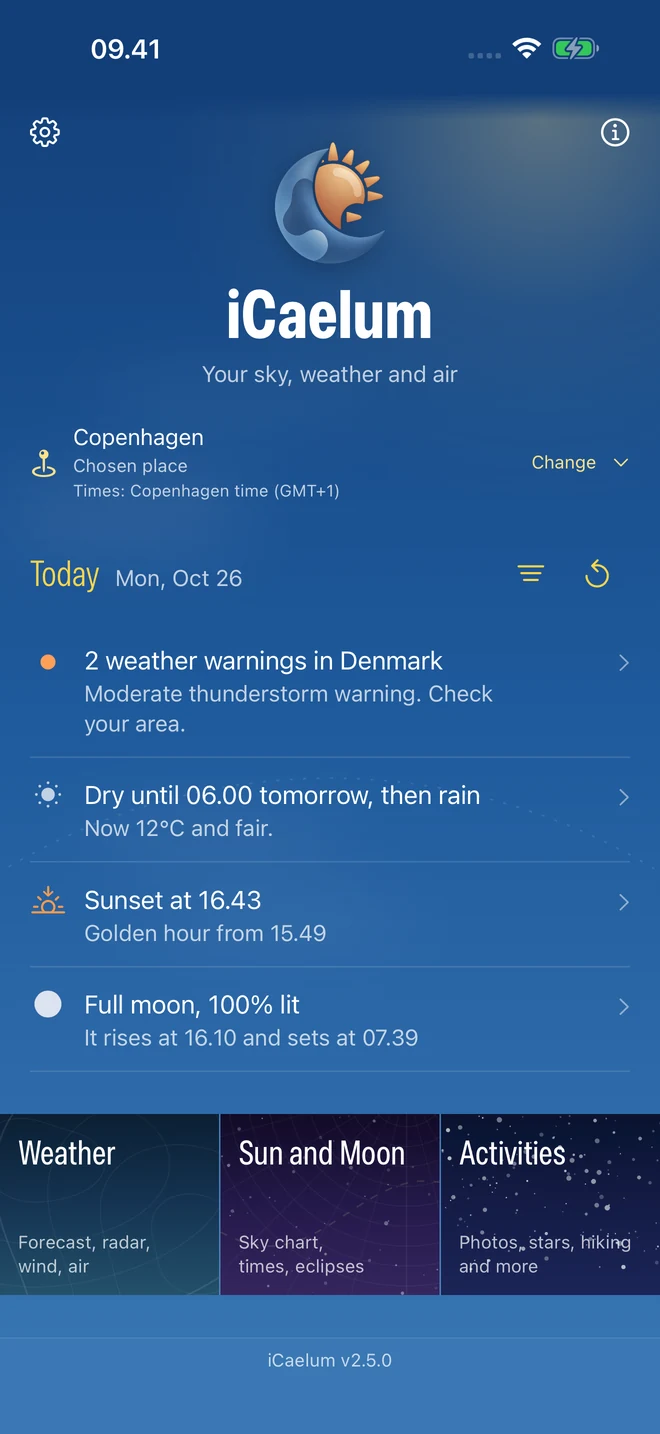
Today opens with the essentials for where you are: the weather, the air and the light in a few lines.
- Tap a line on Today to see it in full.
- Use the three doors to reach the weather, the Sun and Moon, or your activities.
- Back always returns you to where you were.
Places and dates
Plan ahead, or for somewhere else: activity and planning views follow the place and the time you choose.
- Use your current location, or search for any place.
- Choose a date and time to look ahead.
Arrange an activity
Make each activity show what you need, in the order you want.
- Open an activity and tap Edit sections.
- Move sections up or down, hide the ones you don’t use, or add sections from elsewhere in the app.
- Tap Save. To go back to the original layout later, tap Reset view.

Build your personal view
Gather the sections you use most, from anywhere in the app, into one view of your own.
- Open My view and tap Choose features, or Edit my view once it has some.
- Add the sections you want, such as shadows, tides or forecasts.
- Arrange them in the order you like, then tap Save.

Find your way around the sky
Sky finder shows the planets and stars where they really are, through your iPhone’s camera.
- Open Sky finder from Stargazing and hold up your iPhone.
- Choose which layers to show: planets, stars, the Sun and the Moon.
- Search for an object and follow the arrow to it. Sky finder always shows the sky where you are now, and works without a connection.

Widgets
Keep your plans in sight on the Home Screen and the Lock Screen.
- Plan an event in iCaelum.
- Add an Event or Upcoming events widget.
- Touch and hold the widget, then tap Edit Widget to choose what it shows.
More help
Every screen in the app has its own guide, a tap away. For anything else, send us a message.
Contact support